PDF Version Available
This document is also available in PDF format: infections.pdf
The PDF version includes bookmarks for easy navigation and is optimized for printing.
Accessibility Notice
This document is also available in HTML format at:
Link: https://aholdengouveia.name/InfoSec/labs/infections.html
The HTML version provides enhanced accessibility features including keyboard navigation, screen reader support, responsive design, dark mode support, and high contrast options.
Learning Outcomes
By the end of this lab, you will be able to:
- Test that antivirus software catches a known threat, using a safe test file
- Identify signs of infection on your own computer
- Build a cleanup kit with current, trusted tools
- Write cleanup steps a home user can follow
Lab Instructions
Everyone eventually gets asked, “can you look at my computer? I think it has a virus.” In this lab, you'll test your antivirus safely, check your own computer for signs of trouble, build a cleanup kit, and write a guide you could actually give to a friend or family member.
Screenshots
This lab asks for about 8 screenshots. Each screenshot should have your name, term, and year. One of the easiest ways to do that is make a text document with your name and term/year on your computer and save it to use all term. Any screenshots that don't include this information won't be counted.
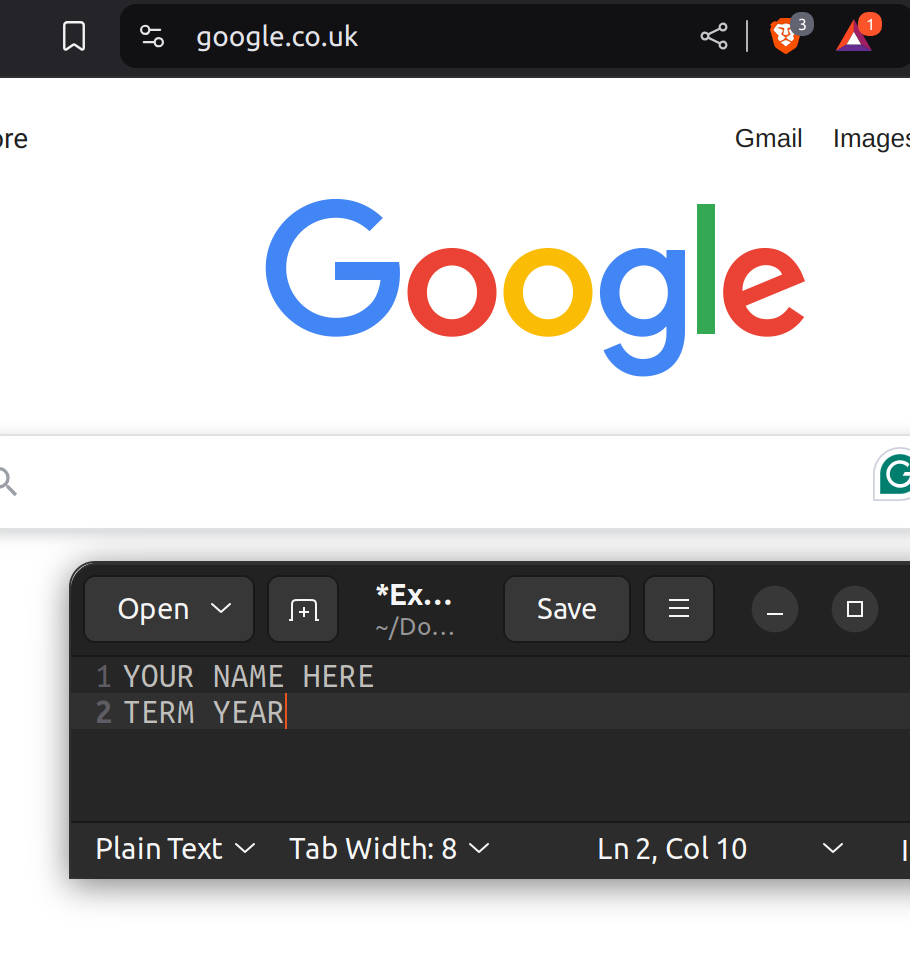
Blur or cover anything sensitive before you turn in a screenshot, as long as your name and term note still shows, such as your username, email address, or file names that are private.
Part 1: Test Your Antivirus Safely
The EICAR test file is a harmless file that antivirus programs are built to detect. It isn't a virus, and it doesn't contain any malware. Security teams use it to check that antivirus is working, without using real malware. Don't turn off your antivirus to get the file. Seeing it get blocked is the point.
- Go to the EICAR download page, linked under Resources, and download eicar.com.txt. Take a screenshot of what your computer does, such as a warning, a blocked download, or nothing at all.
- Find where your antivirus keeps a record of what it caught, and take a screenshot. On Windows, open Windows Security, then Virus & threat protection, then Protection history.
- If nothing happened, that's a result too. Macs and Chromebooks often don't react to the test file. Test it in your Linux virtual machine instead: download eicar.com.txt in the virtual machine's browser, then run these commands. Installing ClamAV can take a few minutes to download its list of known malware. If clamscan says it can't find the database, wait a few minutes, and try again.
Take a screenshot of the result. If your computer did catch it, you can skip this question.sudo apt install clamav cd Downloads clamscan eicar.com.txt - Why do security teams use a test file instead of real malware? What did your test tell you about your computer's protection?
Delete the test file when you're done.
Part 2: Check for Signs of Infection
Look for the signs from the topic page, such as a slow computer, high CPU use, programs you don't recognize, and browser extensions you didn't add.
- Windows: press Ctrl, Shift, and Esc to open Task Manager. On the Processes page, sort by CPU. Then open the Startup apps page.
- Mac: open Activity Monitor, and sort by CPU. Then open System Settings, General, then Login Items & Extensions.
- Chromebook: press Search and Esc to open Task Manager, and sort by CPU.
- Browser extensions: in Chrome, go to chrome://extensions. In Edge, edge://extensions. In Firefox, about:addons. In Safari, open Settings, then Extensions.
- Take a screenshot of your processes sorted by CPU. What are the top 3, and what does each one do?
- Take a screenshot of your startup apps or login items. Do you need all of them to start when your computer starts?
- Take a screenshot of your browser extensions. Do you recognize and use all of them?
- Pick 2 items from your screenshots that you didn't recognize. Look each one up, and say whether it's safe. Give your source, such as the maker's website or Microsoft's or Apple's support pages. Be careful: some websites that explain process names try to sell you cleanup software.
- Based on what you found, does your computer show any signs of infection? Explain.
Part 3: Build a Cleanup Kit
Make a folder called Cleanup Kit, on a USB drive if you have one, or on your computer if not. Download at least 2 tools into it, only from the official websites linked under Resources:
- Windows: Microsoft Safety Scanner, Emsisoft Emergency Kit, or Malwarebytes AdwCleaner. Windows also has a built-in deep scan, the Microsoft Defender Offline scan, which you don't need to download.
- Mac: Malwarebytes for Mac, and one Windows tool, so your kit can help someone else.
- Chromebook: build a kit for a Windows computer, using 2 of the Windows tools.
- Take a screenshot of your Cleanup Kit folder.
- For one Windows tool, check its digital signature, like you did in the Physical and Device Security lab: right-click it, select Properties, then Digital Signatures. Take a screenshot. If you're on a Mac or Chromebook, explain who the signature should be from, and why it matters.
- Microsoft Safety Scanner stops working 10 days after you download it. Why do tools like this need a fresh download each time?
- Why should you only download cleanup tools from official websites? Think about the fake AI model on Hugging Face from the topic page.
Part 4: Your Home Cleanup Guide
- Write a one-page guide that a friend or family member could follow if they think their home computer is infected. Write it for someone who isn't good with computers, with numbered steps in your own words. Include:
- The signs that something is wrong
- Backing up important files first
- Disconnecting from the internet
- Running the tools from your Cleanup Kit, with where to download each one
- Running a deeper scan, such as the Microsoft Defender Offline scan
- Changing passwords afterwards, from a different, clean device
- When to stop and get help from a professional, or reinstall the computer
Make it something you'd actually give someone. You're welcome to share it.
Deliverables
One file that includes:
- Part 1: your screenshots, and your answers
- Part 2: your 3 screenshots, and your answers
- Part 3: your 2 screenshots, and your answers
- Part 4: your home cleanup guide
Resources
References, a video, a PowerPoint and some notes are available at my website Link: https://www.aholdengouveia.name/InfoSec/ManagingInfections.html
EICAR: the anti-malware test file, for Part 1 Link: https://www.eicar.org/download-anti-malware-testfile/
Microsoft Safety Scanner, for Part 3 Link: https://learn.microsoft.com/en-us/defender-endpoint/safety-scanner-download
Emsisoft Emergency Kit, a free portable scanner, for Part 3 Link: https://www.emsisoft.com/en/emergency-kit/
Malwarebytes AdwCleaner, for adware, for Part 3 Link: https://www.malwarebytes.com/adwcleaner
Malwarebytes, including Malwarebytes for Mac, for Part 3 Link: https://www.malwarebytes.com/
Microsoft: Virus and threat protection in the Windows Security app, including the Microsoft Defender Offline scan Link: https://support.microsoft.com/en-us/windows/security/threat-malware-protection/virus-and-threat-protection-in-the-windows-security-app
FTC: Malware: how to protect against, detect, and remove it Link: https://consumer.ftc.gov/articles/malware-how-protect-against-detect-and-remove-it