PDF Version Available
This document is also available in PDF format: VM1.pdf
The PDF version includes bookmarks for easy navigation and is optimized for printing.
Accessibility Notice
This document is also available in HTML format at:
Link: https://aholdengouveia.name/InfoSec/labs/VM1.html
The HTML version provides enhanced accessibility features including keyboard navigation, screen reader support, responsive design, dark mode support, and high contrast options.
Learning Outcomes
By the end of this lab, you will be able to:
- Install virtualization software and create virtual machines
- Install Linux Mint and Kali Linux in virtual machines
- Configure virtual machine settings, such as memory and storage
Lab Instructions
You'll be setting up two virtual machines: Linux Mint, a beginner-friendly desktop Linux, and Kali Linux, which comes with many of the security tools used later in this class. The software and guides are all linked under Resources.
Apple Silicon Macs (M1 or newer): the regular downloads won't run on these Macs. You'll need the Apple Silicon version of VirtualBox, or UTM, with the ARM64 version of Kali. Linux Mint doesn't have an ARM64 version, so check with me for an alternative.
Screenshots
This lab asks for 6 screenshots. Each screenshot should have your name, term, and year. One of the easiest ways to do that is make a text document with your name and term/year on your computer and save it to use all term. Any screenshots that don't include this information won't be counted.
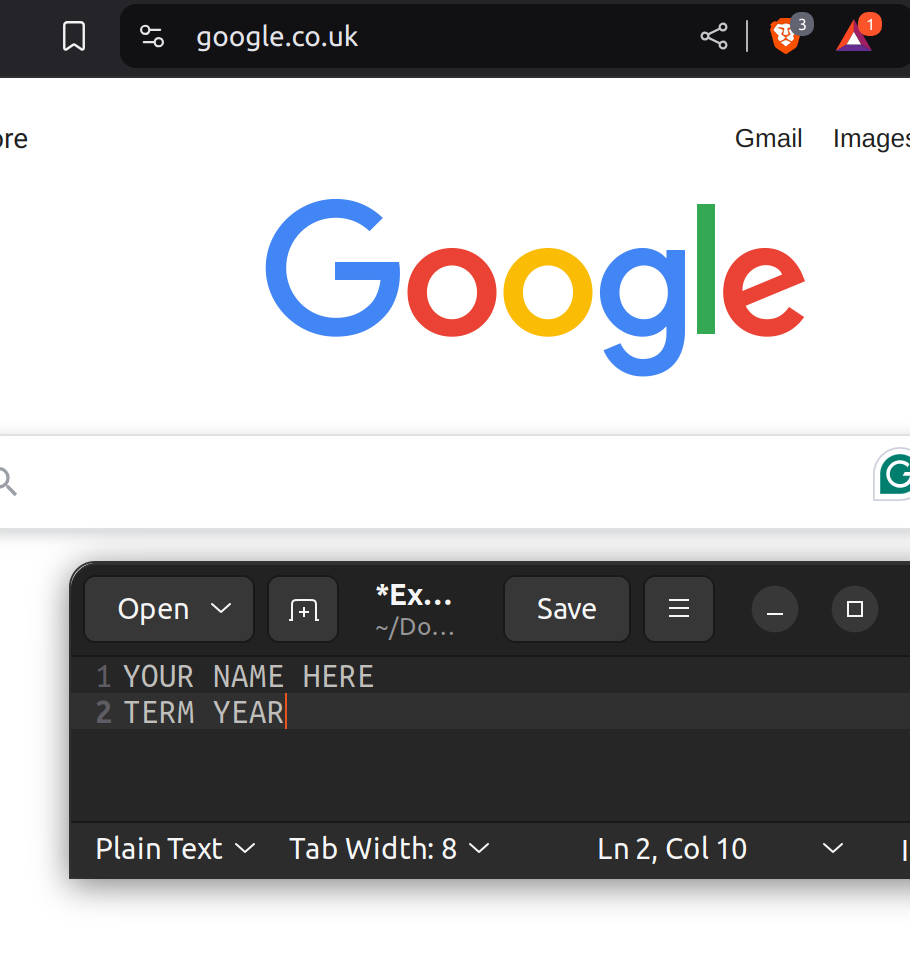
Set up VirtualBox
- Download and install VirtualBox, or another virtual machine program you prefer.
Install Linux Mint
- Download Linux Mint. Any desktop edition is fine.
- In VirtualBox, create a new virtual machine and use the Mint download to start it.
- When Mint starts, double click the Install Linux Mint icon and follow the steps. The Linux Mint installation guide can help if you get stuck.
- You'll make a username and password during the install. Don't lose them! If you do, you'll need to reinstall the whole virtual machine.
Install Kali Linux
Choose one of these two ways to set up Kali:
- Easier: download Kali's ready-made VirtualBox image, and import it by following Kali's guide. The default username and password are both kali. Change the password after you log in.
- Full install: download the Kali installer, and follow Kali's guide to installing it in VirtualBox. You'll create your own username and password during the install.
If the full install shows an error about the network mirror, continue without it. After the install finishes, follow Kali's guide to setting up its package repositories.
Kali no longer uses the root account by default, so log in with your own user. When a command needs admin rights, put sudo in front of it.
Check your settings
- Once each install is finished, open the virtual machine's Settings in VirtualBox, and go to Storage. Make sure the installer file (the ISO) has been removed, so the virtual machine starts from its own virtual hard disk. If you imported Kali's ready-made image, there's no ISO to remove.
Deliverables
One file that includes these 6 screenshots, clearly labelled. Individual image files aren't accepted, and each screenshot should show what's asked for, not your whole monitor.
- Mint, logged in
- Kali, logged in as your user
- A terminal open in Mint
- A terminal open in Kali
- The Storage settings for your Mint virtual machine
- The Storage settings for your Kali virtual machine
Resources
References, a video, a PowerPoint and some notes are available at my website Link: https://www.aholdengouveia.name/InfoSec/InfoSecWk1.html
VirtualBox downloads Link: https://www.virtualbox.org/wiki/Downloads
Linux Mint download Link: https://www.linuxmint.com/download.php
Linux Mint installation guide Link: https://linuxmint-installation-guide.readthedocs.io/en/latest/
Kali Linux downloads, including the ready-made virtual machine images Link: https://www.kali.org/get-kali/
Kali guide: importing the ready-made VirtualBox image Link: https://www.kali.org/docs/virtualization/import-premade-virtualbox/
Kali guide: installing Kali in VirtualBox Link: https://www.kali.org/docs/virtualization/install-virtualbox-guest-vm/
Kali guide: setting up the package repositories Link: https://www.kali.org/docs/general-use/kali-apt-sources/
UTM, for Apple Silicon Macs Link: https://mac.getutm.app/